Strife Chapters
Working with chapters in Strife
Here you'll find the basics of working with chapters in Strife.
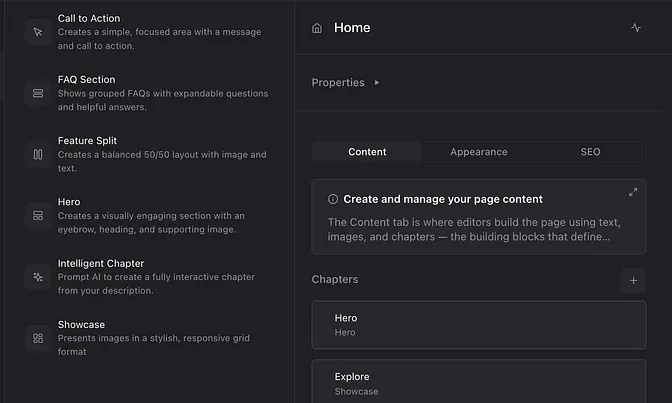
What is Chapters?
Chapters is a pre-defined page component that carries content. They can be perceived as reusable content containers for any content type (text, media, audio). Chapters are independent sections of content that hierarchically does not belong to any specific page. They are the primary building blocks of a web page and are typically used for page structuring and content disposition.
A chapter regulates how content can be presented on the page. A chapter can be built to only present content in one specific way or the chapter can be built to allow for editors to chose from multiple different presentation styles.
Chapters can be global (the same content reused over multiple pages) or local (the same content only used on one page). On this website we only use local chapters.
It is also possible to ad a chapter in another chapter (e.g. an FAQ feature may be built as a chapter and each question and answer may be a sub chapter).
Ad a Chapter to a page
From the content list, select the page you want to ad a chapter on. Navigate to the chapter section in the right editor pannel. Hit the “+” icon to open the chapter library. Chose to insert a chapter on the page or create a new Intelligent chapter to use AI to generate a brand new page component. The chapter will now be added to the page chapter list and you can ad your content to it.
Create an Intelligent Chapter
From the chapter library you can choose to create an Intelligent chapter. Intelligent chapter uses an agent based (agentic) AI setup to generate fully editable page components. Each agents is trained on different aspects of the developing process. This ensures that critical aspects (like validating compliance with designsystem) are ensures. When AI is done building your Intelligent chapter, toggle to the “edit tab” to do your content edits.
Re-arrange chapters
When you ad a new chapter to the page it will by default be placed at the bottom of the page and chapter list. You can easily re-arrange the order of your page chapters, simply by drag and drop a chapter to the place you want it. The real time page preview follows your actions so you can instantly see how the chapter is presented on the page.